Android GX WiFi Display: how to turn an Android tablet into the screen for your Victron system (step-by-step guide)
Author: David Conesa Albaladejo
Publication date: 30 September 2026
Last updated: 30 September 2026
Do you have a an Android tablet or mobile phone forgotten in a drawer? With the app Android GX Wi-Fi Display You can convert a Victron Energy into a fixed wireless display for your Cerbo GX, Ekrano GX or any device with GX built-in. Victron has just released the version 1.2, which makes the connection more stable, so now is a good time to set it up. In this guide, we explain the whole process, step by step.
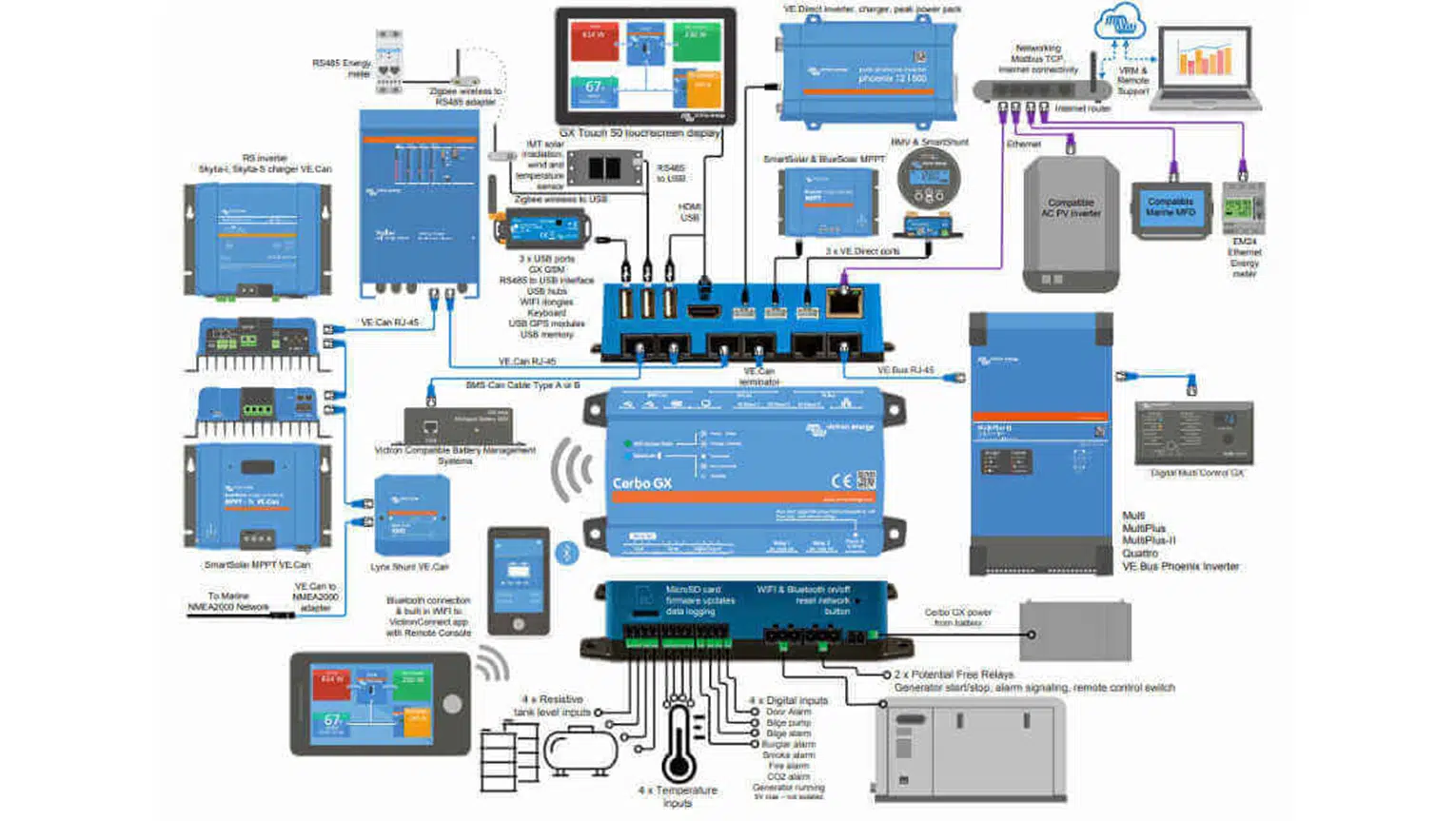
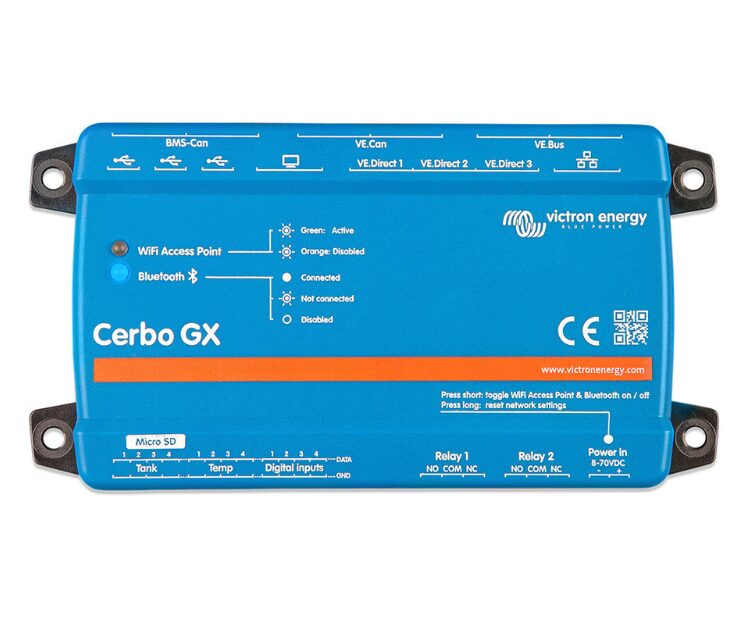
The GX device (pictured here is a Cerbo GX) is the brain of the system. The Android tablet connects to it via Wi-Fi and displays the same interface as a GX Touch screen.
What is Android GX WiFi Display?
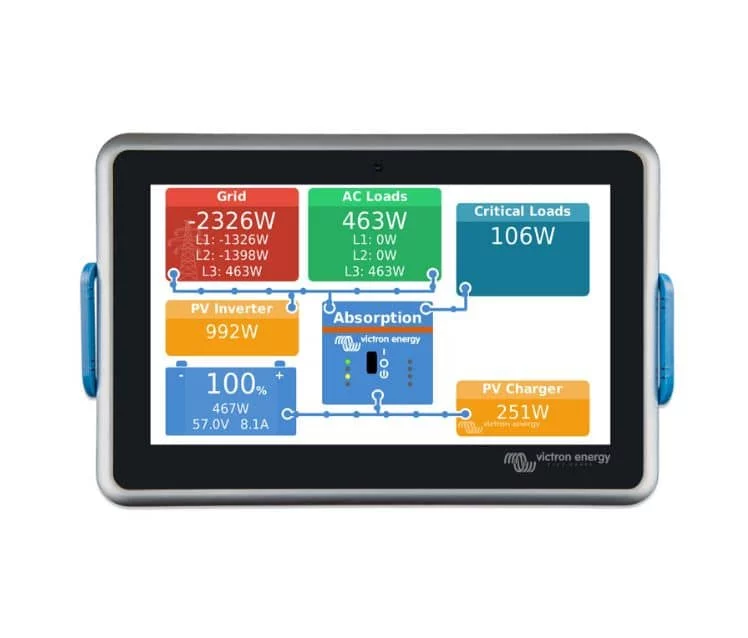
It is a Victron app that runs on the Android device at kiosk mode: the device is designed solely to display and control your Victron system. The interface is virtually identical to that of a GX Touch screen or an Ekrano GX, with the same menus and touch controls.
It serves as home screen on systems without their own display, such as a standalone Cerbo GX.
It serves as additional screen alongside a GX Touch or an Ekrano GX, for example on another floor of the house or in another cabin on the boat.
You can connect several tablets at once on the same GX, and each one can display a different page.
What you need before you start
An Android 8.0 or later mobile phone or tablet. Victron does not recommend any specific brands: almost any equipment will do, although well-known brands tend to give better results.
A GX device running Venus OS 3.50 or later (Cerbo GX, Ekrano GX, MultiPlus-II GX, EasySolar-II GX…).
Internet connection Only during installation, to download the app. Afterwards, it can operate on a Wi-Fi network without an internet connection or connected directly to the GX Wi-Fi access point.
Continuous feeding For the tablet: although it connects wirelessly, it needs to be charging to keep the screen on.
The installation QR code, which is in the Official Victron Manual. Have it open on another device so you can scan it.
Summary: System requirements for Android GX WiFi Display v1.2
Device: Android 8.0 or later mobile phone or tablet, dedicated (runs in kiosk mode).
Victron unit: any GX model (Cerbo GX, Ekrano GX, MultiPlus-II GX, EasySolar-II GX, etc.).
GX firmware: Venus OS 3.50 or later.
Network: Local Wi-Fi (no internet connection required) or the GX’s own Wi-Fi access point.
Internet: only during installation, to download the app.
Food: permanently connected charger.
Installation: Factory reset and scanning the QR code for the official Victron manual.
Current version: 1.2 (September 2026).
Step 1: Installing the app
Important: The process begins with a factory reset and deletes all data from the device. Furthermore, once installed, the tablet can no longer be used for browsing, email or other apps until you reset it again. Use a dedicated device, not your personal mobile phone.
Reset the device to factory settings following the manufacturer’s instructions. If it’s new, it comes like that.
Switch it on until the welcome screen appears («Hola» or «Welcome»).
Tap the welcome message six times in a row. Do not press the «Start» button. The camera will open so you can scan a QR code.
Scan the QR code from the Victron manual.
Select your Wi-Fi network and enter the password. This network must have internet access in order to download the app.
Click «Next» y accept the terms and conditions. The device will install the app and check for updates.
If it asks you for permissions for locating and searching for Wi-Fi networks, you can leave them switched on: they’re optional, but they help you find the GX on the network.
Select your preferences on the Google services and press «Accept». That completes the installation.
This installation method is called MDM (Mobile Device Management) and is the one normally used in businesses. The appearance of the screens may vary slightly depending on your tablet’s manufacturer.
Step 2: Initial setup and connection to the GX
Once the installation is complete, the following appears: setup wizard comprising three sections:
Set up Wi-Fi. The tablet is already connected to the network you used during set-up, but you can change it. If your GX has the Wi-Fi access point, you’ll see its network in the list: when you select it, the tablet connects directly to the GX, without a router in between. You can also enter the network details manually (useful if the name is hidden) or scan the network’s QR code.
Select a device. Wait a few seconds for your GX to appear in the list, then tap «Connect». If it doesn’t appear (for example, because it’s on a different subnet), tap «Add manually» and enter its IP address.
Set a PIN. This is optional but recommended: it prevents anyone from changing the tablet’s settings. Please note that this PIN does not protect the GX’s own settings.
Click «Accept» and, after a few seconds, the tablet will load the GX interface. From then on, you use it just like a GX Touch.
Step 3: Settings via the service menu
To open the service menu, Press and hold the bottom-left corner for about 5 seconds on the screen (there are no visible buttons). If you have set a PIN, you’ll be asked to enter it. From there, you can:
Keep the screen on Always very useful if the tablet is mounted on the wall.
Enable the automatic rotation and display the battery status of the tablet.
Enable the automatic check for updates or look for them manually.
Search for another GX o switch Wi-Fi networks, if you change your equipment or your setup.
Go to the Android settings (power, display, connections).
To make a factory reset to start using the tablet again as normal.
What’s new in version 1.2
Version 1.2, released on 29 September 2026, focuses on reliability:
Stay connected to the GX with the screen off whilst the tablet is charging.
More stable Wi-Fi management, particularly when connecting to the GX’s built-in access point.
Track and monitor the GX more effectively within the network.
Ask for fewer permits, to prevent Play Protect from blocking the installation via QR code.
If you’ve already installed it, it will update automatically if you’ve enabled automatic updates: you’ll receive a notification and simply need to tap «Install». If not, check for updates manually via the service menu.
Troubleshooting common issues
The welcome screen does not appear, or the camera does not open when tapped six times. Your device is not compatible with MDM installation. Try the alternative method using an APK file, as explained in the Victron manual.
The app cannot be downloaded. Check that the Wi-Fi network has an internet connection and that no firewall or DNS filter is blocking the download. If not, try using a different network.
The administration app cannot be installed. The tablet may be managed by a company or subject to parental controls (Google Family Link). You’ll need to remove these restrictions before installing the app.
The GX does not appear on the list. Add it manually using its IP address, or connect the tablet directly to the GX’s Wi-Fi access point.
Don’t have a GX device yet?
The app requires a GX running Venus OS 3.50 or later. These are the most common options:
Cerbo GX No screen of its own: the Android tablet can be your main screen.
Ekrano GX With a built-in screen: the tablet acts as an additional screen.
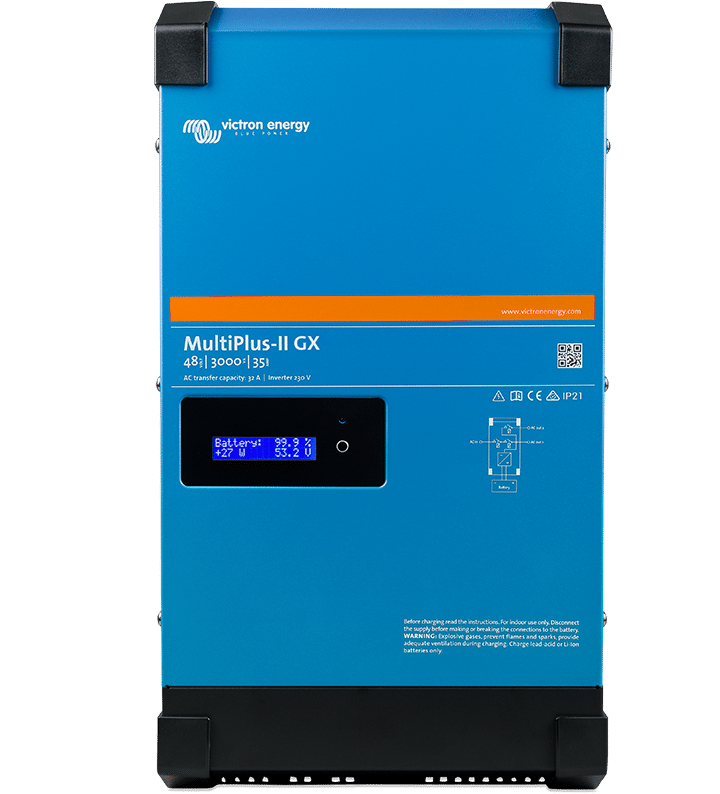
MultiPlus-II GX Inverter-charger with the GX already integrated.
Frequently asked questions
What is the Victron Android GX WiFi Display?
It is a Victron Energy app that turns an Android mobile phone or tablet into a dedicated wireless display for a GX device (Cerbo GX, Ekrano GX or devices with integrated GX). It connects via Wi-Fi and displays the same interface as a GX Touch screen.
What are the requirements?
A device running Android 8.0 or later, a GX running Venus OS 3.50 or later, and an internet connection during installation. In addition, the tablet must remain connected to a charger at all times.
Can I still use the tablet for other things?
No. The app runs in kiosk mode and dedicates the device exclusively to the Victron screen. To return to normal use, you need to perform a factory reset via the service menu.
Do I need an internet connection for it to work?
Just to install it. Afterwards, it can operate on a Wi-Fi network without an internet connection or be connected directly to the GX’s own Wi-Fi access point, which is very useful in campervans and on boats.
Can I connect several tablets to the same GX?
Yes. Several Android screens can be connected to the same GX at the same time, and each can display a different page, alongside a GX Touch or an Ekrano GX.
Is a mobile phone sufficient, or only tablets?
Both will do. Choose the one that best suits your screen size and location.
Not sure which GX model is right for your installation or how to fit the screen? At FV Componentes, we specialise in the Victron: check out the Cerbo GX and the Ekrano GX, or drop us a line and we’ll help you choose. You can also use the Victron video tutorial (in English).
Recommended settings for configuring the Victron and SmartShunt on the VictronConnect with lithium and lead-acid batteries: discharge limit 5%, Peukert 1.05, tail current 4% and above, with a step-by-step video guide.
The Pylontech US are batteries for domestic use. We’ll explain which certifications a vehicle requires (R10, SAE J1455), how vibration affects them, what the warranty covers, and what happens with insurance in the event of a fire.
A step-by-step guide to powering CCTV cameras using solar energy on farms, construction sites or industrial premises without mains electricity: power consumption, batteries, solar panels, 4G and common pitfalls to avoid.
Firmware v1.15 for the Victron in the Orion XS range adds emergency reverse charging: the DC-DC charger recharges the starter battery from the auxiliary battery. Compatible models, how to activate it, limits and how to update.
We use our own and third-party cookies to obtain statistical data on our users' browsing habits, offer personalised marketing and improve our services.
Functional
Always active
The storage or technical access is strictly necessary for the legitimate purpose of enabling the use of a specific service explicitly requested by the subscriber or user, or for the sole purpose of carrying out the transmission of a communication over an electronic communications network.
Preferences
The technical storage or access is necessary for the legitimate purpose of storing unsolicited preferences of the subscriber or user.
Statistics
Technical storage or access that is used exclusively for statistical purposes.Technical storage or access that is used exclusively for anonymous statistical purposes. Without a request, voluntary compliance by your Internet Service Provider, or additional records from a third party, information stored or retrieved solely for this purpose cannot be used to identify you.
Marketing
Technical storage or access is necessary to create user profiles to send advertising, or to track the user across a website or across multiple websites for similar marketing purposes.